Overview
When adding a Z-Wave device with SmartStart, you may see a message similar to:
“The device was provisioned but not yet added to the network.”
This means that the device was added to the SmartStart provisioning list, but it has not yet been included in the Z-Wave network.
In simple words:
The controller has the device QR code or DSK.
The device is waiting in the SmartStart list.
The device has not completed inclusion yet.
There are several possible reasons for this behavior.
What SmartStart provisioning means
SmartStart works by adding the device information to the controller before the device joins the network.
This information normally comes from:
The QR code
The DSK
The device security information
The selected protocol, such as standard Z-Wave mesh or Z-Wave Long Range
After the device is provisioned, it should include automatically when it is powered and ready for inclusion.
If the device stays provisioned but not added, something is preventing the inclusion from completing.
Most common causes
1. The device is already included in another Z-Wave network
A Z-Wave device can only belong to one Z-Wave network at a time. If the device already has a Home ID and Node ID, it is already included in a network. In this state, SmartStart will not include the device again.
How to fix it
Remove the old network information from the device.
You can do this in one of two ways:
Perform Z-Wave exclusion
Perform factory reset
Both actions remove the Home ID and Node ID from the device. After this, the device can be added to the controller again.
2. The device was added as Long Range, but it is not a Long Range device
Another common reason is selecting Z-Wave Long Range for a device that does not support Long Range. Only devices manufactured as Z-Wave Long Range devices can be added with Long Range inclusion. A standard Z-Wave mesh device cannot be added as Long Range.
This is true even if the device is updated with newer firmware. A firmware update does not add Long Range hardware capability.
How to check it
Check the product box, device label, or part number. A Long Range device should have the Z-Wave Long Range logo on the package or label. If the device does not have the Long Range logo, it must be added as a standard Z-Wave mesh device.
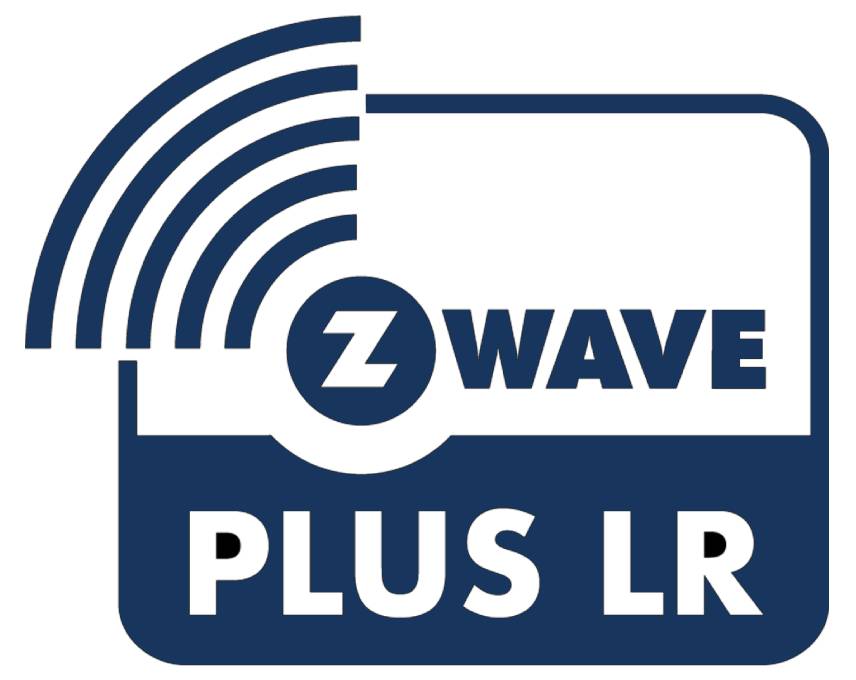
Example
If the device is a standard US or EU Z-Wave device but does not have the Long Range logo, it cannot be included with the Long Range method. In this case, add it as a normal Z-Wave mesh device instead.
3. The wrong DSK or QR code was used
SmartStart uses the device DSK to identify and securely include the device. If the wrong DSK or QR code is used, the controller will wait for a different device.
This can happen if:
The wrong extra label was used.
Labels from different devices were mixed.
The QR code belongs to another device.
The DSK was typed incorrectly.
The first 5 digits, also called the PIN, do not match the device.
How to fix it
Verify that the DSK belongs to the device. You can compare the DSK shown during S2 inclusion with the DSK printed on the label. If the numbers do not match, the label may not belong to the device. If the label is lost or wrong, retrieve the DSK directly from the device if your controller allows it.
4. The device has the wrong Z-Wave frequency
Z-Wave devices are manufactured for specific regional frequencies. A device made for one region will not work with a controller from another region.
For example:
US device must be used with a US frequency controller.
EU device must be used with an EU frequency controller.
ANZ device must be used with an ANZ frequency controller.
If the device and controller use different frequencies, inclusion will not work.
How to check the frequency
The easiest visual check is the device label or part number. The region is usually shown at the end of the part number.
Example:
QUSW-0A1X15USThe important part is the last two letters:
USThis means the device is made for the US frequency region. Make sure the region on the device matches the region of your Z-Wave controller.
Additional possible causes
5. The device was powered before being added to SmartStart
For SmartStart, the best practice is to add the device to the SmartStart list before powering the device for the first time. If the device was already powered before it was added to SmartStart, it may not start the inclusion immediately you might wait long time before the device send a SmartStart inclusion command.
How to fix it
Try one of the following:
Power-cycle the device.
Remove and reinsert the battery, if it is a battery-powered device.
Wake up the device manually, if required.
Exclude or reset the device, then try wait the SmartStart inclusion again.
6. The SmartStart entry is not active
Some controllers allow a SmartStart entry to be added but not active. If the entry is disabled, the controller will not include the device.
How to fix it
Open the SmartStart list and check that the entry is active or enabled.
Also check that the correct protocol was selected:
Standard Z-Wave mesh for normal devices
Z-Wave Long Range only for Long Range devices
7. The controller does not support the selected inclusion type
Not all controllers support all Z-Wave inclusion methods.
For example:
Some controllers support S2 but not SmartStart.
Some controllers support SmartStart but not Long Range.
Some controllers support Long Range only with specific hardware or firmware.
Some controllers may need a software update before Long Range works.
How to fix it
Check that the controller supports the selected method.
For Long Range inclusion, verify that:
The controller supports Z-Wave Long Range.
The device supports Z-Wave Long Range.
The correct Long Range protocol was selected.
The device and controller use the same regional frequency.
8. The device is too far from the controller or has poor communication
Even with SmartStart, the device still needs to communicate with the controller. If the device is too far away or the signal is weak, inclusion may fail or never complete.
How to fix it
Try the inclusion close to the controller.
Recommended checks:
Move the device closer to the controller.
Avoid metal cabinets or electrical panels.
Use a USB extension cable for the Z-Wave USB controller.
Try again when the Z-Wave network is stable.
Recommended troubleshooting steps
Follow these steps in order.
Step 1: Check if the device is already included
If the device was previously added to another controller, exclude it first. You can perform exclusion from any Z-Wave controller, even if the device was included in another network. After exclusion, try SmartStart again.
Step 2: Confirm if the device is Long Range or standard mesh
Check the device package, label, or part number. If the device does not have the Z-Wave Long Range logo, do not select Long Range inclusion. Add it as a standard Z-Wave mesh device.
Step 3: Verify the DSK or QR code
Make sure the QR code or DSK belongs to the device. If there is an extra label in the box, compare it with the device QR code or with the DSK shown during S2 inclusion. If the label does not match, the wrong label may have been used.
Step 4: Check the frequency region
Check the device part number and confirm the region.
Examples:
| Region marking | Meaning |
|---|---|
| EU | European frequency |
| US | United States frequency |
| AU (ANZ) | Australia / New Zealand frequency |
The device and controller must use the same region.
Step 5: Remove and re-add the SmartStart entry
If the SmartStart entry was created with the wrong settings, delete it and add it again.
When adding it again:
Scan the correct QR code.
Select the correct protocol.
Activate the entry.
Power-cycle or wake the device.
Step 6: Reset or exclude the device
If the device still does not include, remove old network data.
Recommended order:
Try exclusion first.
If exclusion does not work, perform factory reset.
Add the device again with SmartStart.
Factory reset should be used only when needed.
How to identify a Long Range device
A Z-Wave Long Range device should be clearly marked.
Check for:
Z-Wave Long Range logo on the package
Long Range marking in the product information
Part number that confirms the Long Range model
Controller option that allows Long Range inclusion after scanning the QR code
If the package or label does not show Long Range, treat the device as a standard Z-Wave mesh device.
Important note about firmware updates and Long Range
A standard Z-Wave mesh device cannot become a Long Range device only by firmware update. Long Range support depends on the device hardware and the way the device was manufactured. If the device was not originally manufactured as a Long Range model, it must be included as a standard mesh device.
What to send to support
If the issue continues, send the following information to support if possible:
Device model
Part number
Serial number
Controller model
Gateway software version
Frequency region of the controller
Screenshot of the SmartStart entry
Screenshot of the device package label
Screenshot of the device label
Confirmation if the device has the Long Range logo
Confirmation if exclusion or reset was performed
Confirmation if the DSK was verified
The inclusion method used: SmartStart, S2, Long Range, or standard mesh
This information helps support confirm if the problem is caused by wrong protocol, wrong DSK, wrong frequency, old network data, or controller compatibility.
Summary
The message “The device was provisioned but not yet added to the network” means that the device is in the SmartStart list but has not completed inclusion.
The most common reasons are:
The device is already included in another Z-Wave network.
The device was added as Long Range but is not a Long Range device.
The wrong DSK or QR code was used.
The device has the wrong frequency region.
The SmartStart entry is not active.
The device was powered before SmartStart was ready.
The controller does not support the selected inclusion method.
The device is not close enough to the controller.
Check the DSK, frequency, Long Range support, SmartStart protocol, and device reset/exclusion state before trying again.