Overview
Each Z-Wave device that supports S2 security, SmartStart, or Z-Wave Long Range has a unique DSK.
DSK means Device Specific Key. The DSK is normally shown as 8 groups of 5 numbers.
Example format:
12345-12345-12345-12345-12345-12345-12345-12345
The first group of 5 numbers is also called the PIN or DSK PIN. This PIN is needed when the controller asks for confirmation during secure S2 inclusion. Our Wave devices also include an extra label in the box with the DSK and QR code. This article explains how to check if this label belongs to the device.
TABLE OF CONTENTS
- Why the DSK label is important
- Method 1: Check the DSK during S2 inclusion
- Method 2: Get the DSK from the QR code on the device
- If the label is wrong or missing
- Retrieve the DSK in Home Assistant
- Retrieve the DSK in Homey
- Retrieve the DSK with PC Controller
- How to format the DSK
- Troubleshooting
- Important notes
- Summary
Why the DSK label is important
The DSK label is used for:
S2 secure inclusion
SmartStart inclusion
Z-Wave Long Range inclusion
Verifying the correct device during inclusion
If the label does not match the device, secure inclusion will fail. This can happen if labels were mixed between devices or if the original label was lost.
Method 1: Check the DSK during S2 inclusion
The easiest way to check if the extra label is correct is to start an S2 inclusion from the controller.
Steps
Start S2 inclusion from your Z-Wave controller.
Start inclusion from the Shelly Wave device.
Wait until the controller recognizes the device.
The controller will show the DSK.
The controller will ask you to enter or confirm the first group of 5 numbers.
Copy or write down the full DSK shown by the controller.
Compare it with the DSK printed on the extra label from the box.
Result
If the DSK numbers match:
The label belongs to the device.
The QR code belongs to the device.
The device can be added with S2.
The device can be added with SmartStart.
The device can be added with Z-Wave Long Range, if supported by the device and controller.
If the DSK numbers do not match:
The label may not belong to this device.
The label may have been mixed with another device.
The PIN from that label will not work.
S2 inclusion will fail.
SmartStart inclusion will fail.
Z-Wave Long Range inclusion will not be possible.
Method 2: Get the DSK from the QR code on the device
If the extra label is lost, you can scan the QR code printed on the device. Use a normal QR code scanner. After scanning, you will get a long number string.
Example:
9001525761311537910332265930054216425309913985848310001004096017920220011200000200145025660803001
The first 12 numbers are not part of the visible DSK. Remove the first 12 numbers. Once you have 8 sets of numbers discart the rest of the numbers.
Example:
900152576131 15379-10332-26593-00542-16425-30991-39858-48310 001004096017920220011200000200145025660803001
The DSK is:
15379-10332-26593-00542-16425-30991-39858-48310
Use this DSK to compare with the label or to confirm the correct PIN during inclusion.
If the label is wrong or missing
If the label is wrong or missing and you need the DSK, it is possible to retrieve the DSK directly from the device. The process depends on the controller or software that you use.
The sections below explain how to do this in:
Home Assistant
Homey
PC Controller
Retrieve the DSK in Home Assistant
Step 1: Add the device without security
First, add the device without security.
This allows the device to be included even if the correct DSK PIN is not available.
Step 2: Copy the Home Assistant device ID
In your browser:
Open Home Assistant.
Go to Settings.
Open Devices & services.
Open Z-Wave.
Select the added device.
Look at the browser address.
The address may look similar to this:
config/devices/device/69b51b9cbdcc0a9084376a1fdee376f0
The last part is the Home Assistant device ID:
69b51b9cbdcc0a9084376a1fdee376f0
Copy this device ID.
In the app:
- Open Developer Tools → Actions (or "Services" on older versions) in the app UI mode.
- Search for and select Z-Wave JS: Invoke CC API.
- Check-mark the Device ID(s).
- Search for your device and select it.
- Once the desired device is selected switch to YAML mode.
- The Device ID will be visible under the:
 device_id:
    - 69b51b9cbdcc0a9084376a1fdee376f0
Step 3: Run the Z-Wave JS action
Go to:
Settings → Developer Tools → Actions
Paste the following code.
Replace the example device ID with your own device ID.
target:
  device_id: 69b51b9cbdcc0a9084376a1fdee376f0
data:
  command_class: 114
  method_name: deviceSpecificGet
  parameters:
    - 3
action: zwave_js.invoke_cc_api
Then click Perform action.
Step 4: Open the Z-Wave JS UI log
Open Z-Wave JS UI and go to:
Store → Logs → z-ui_current.log
Look for a line similar to this:
2026-07-30 12:30:52.563 INFO Z-WAVE: [Node 097] Value added 97-114-0-deviceId-unknown (0x03) => 0x01aed50a6ba85560aed7dddce59a0dd3
The important part is the hexadecimal value after =>.
Example:
0x01aed50a6ba85560aed7dddce59a0dd3
Step 5: Convert the value to DSK format
Remove the 0x and split the value into blocks of 4 hexadecimal characters.
Example:
01AE-D50A-6BA8-5560-AED7-DDDC-E59A-0DD3
Convert each hexadecimal block to decimal. Each decimal result is one DSK group.
If any group has fewer than 5 digits, add zeros at the beginning until it has 5 digits.
Example:
01AE = 00430D50A = 545386BA8 = 27560
After converting all 8 blocks, you will have the full DSK in this format:
00430-54538-27560-21856-44759-56796-58778-03539
Retrieve the DSK in Homey
Step 1: Add the device without security
Add the device without security. When the controller asks for the PIN number, enter: 00000
After the device is added, continue with the next steps.
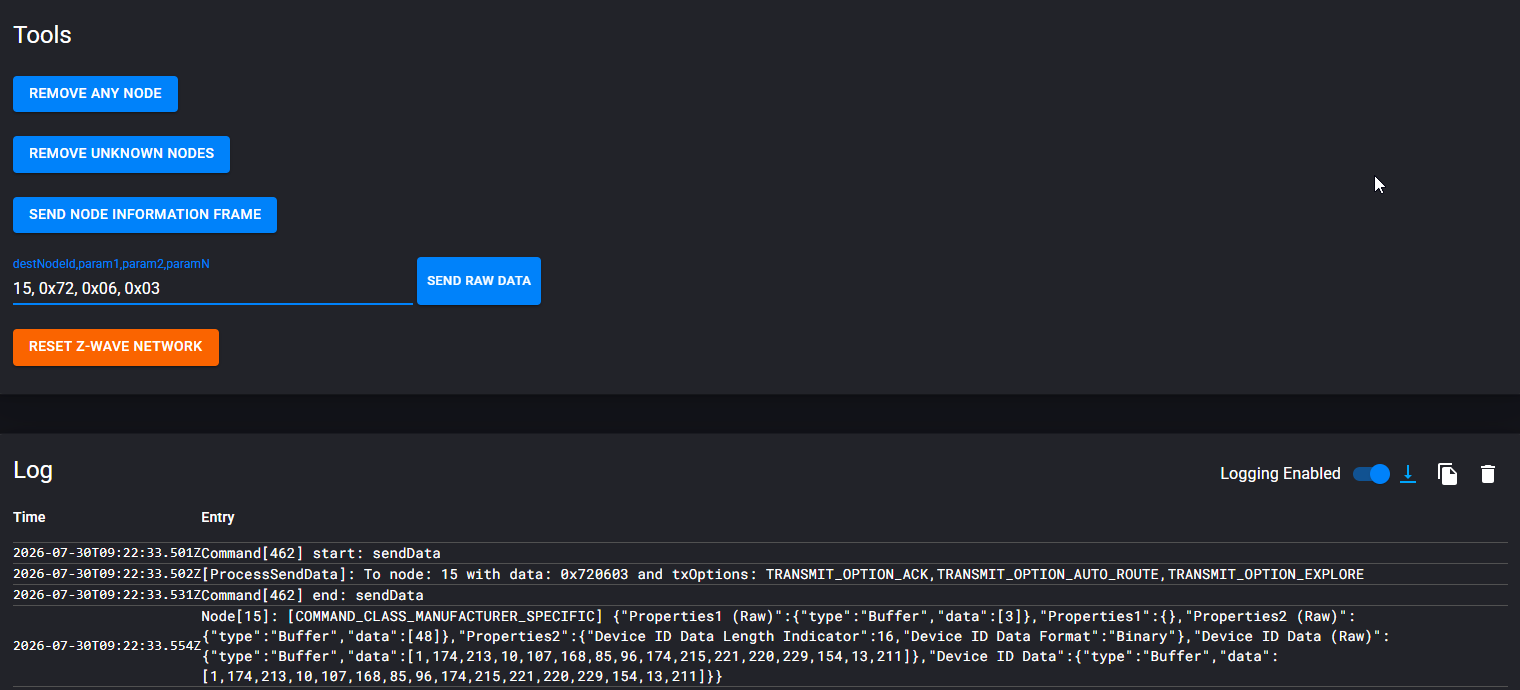
Step 2: Open Homey Developer Tools
Open Homey Developer Tools.
Go to Z-Wave.
Find the field used to send raw commands.
Check the log area below it.
Step 3: Send the Device Specific Get command
Find the Node ID of the device.
Then send this command:
NodeID, 0x72, 0x06, 0x03
Example, if the device Node ID is 25:
25, 0x72, 0x06, 0x03
Send the command and check the log.
Step 4: Read the returned numbers
The log should return an array with 16 numbers separated by commas.
Example:
[1,174,213,10,107,168,85,96,174,215,221,220,229,154,13,211]
Step 5: Convert the values
Convert each number to hexadecimal. Then group the hexadecimal values in pairs of two bytes.
Example:
1,174 → 01AE → 430 add tow 0 to have 5 digit number 00430213,10 → D50A → 54538107,168 → 6BA8 → 2756
Convert each 4-character hexadecimal block back to decimal. Each decimal result is one DSK group.
If a decimal group has fewer than 5 digits, add zeros at the beginning.
This gives you the complete DSK stored in the device.
Retrieve the DSK with PC Controller
PC Controller is part of the Silicon Labs Z-Wave SDK.
To get it, you normally need to register on the Silicon Labs Developer Site and download the SDK.
If there are issues with the official download, support may also be able to provide a copy of the software.
Installation and setup
Install PC Controller on a Windows PC.
Connect a Z-Wave USB stick to the computer.
Open PC Controller.
Go to Settings.
Select the correct COM port for the Z-Wave USB stick.
Add the device
Click Add in PC Controller.
Start inclusion on the Shelly Wave device.
Wait until the device is added.
Important LED note
If the device LED is blinking green, it may be in the wrong mode.
In this case:
First perform exclusion.
Wait until the LED blinks blue.
Try adding the device again.
Send Device Specific Get command
After the device is added:
Select the device.
Open the Log (bottom right icon)
Press the Clear button in the Log
Send the Device Specific Get command.
Choose the device top left
left down choose MANUFACTURER_SPECIFIC command class (0x72)
right side under command choose DEVICE_SPECIFIC_GET (0x06)
under the Device ID type choose 3 in decimal
Press send (complete command is 72 06 03)
Read the returned hexadecimal data from the log that should look be
Rx DEVICE_SPECIFIC_REPORT(72 07) + 03 30 01 AE D5 0A 6B A8 55 60 AE D7 DD DC E5 9A 0D D3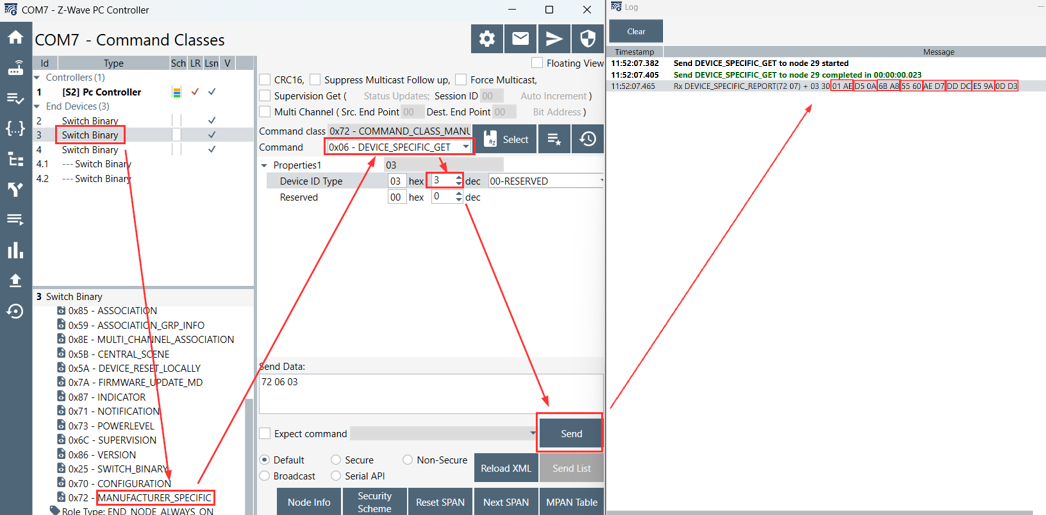
Convert the DSK
The response contains the device-specific data. Convert the hexadecimal values into decimal groups without the first two bytes in our case the 03 30
Each DSK group is made from 2 bytes, which means 4 hexadecimal characters.
Example:
82E2
Convert it to decimal:
82E2 = 33506
This gives one DSK group.
If the decimal number has fewer than 5 digits, add zeros at the beginning.
Example:
430 → 00430
The first converted group is the PIN number requested during S2 inclusion.
How to format the DSK
The complete DSK must contain 8 groups of 5 numbers.
Correct format:
12345-12345-12345-12345-12345-12345-12345-12345
If a converted value has fewer than 5 digits, add leading zeros.
Example:
430
must be written as:
00430
Troubleshooting
The label does not match the device
If the label does not match the DSK shown by the controller, the wrong label may have been used. Check if the label was mixed with another device box.
S2 inclusion fails
S2 inclusion may fail if:
The wrong PIN was entered.
The label does not belong to the device.
The QR code belongs to another device.
The controller does not support the selected security level.
The device was already included in another network.
SmartStart does not work
SmartStart may fail if:
The QR code is from the wrong device.
The controller does not support SmartStart.
The controller does not support the device region or protocol.
The device was already included in another network.
Long Range inclusion does not work
Z-Wave Long Range inclusion may fail if:
The DSK is wrong.
The QR code belongs to another device.
The controller does not support Long Range.
The selected protocol is not Z-Wave Long Range.
The device does not support Long Range.
The frequency region does not match.
Important notes
The DSK is unique for each device.
The first 5 numbers are the S2 PIN.
The extra label in the box must match the device.
If the label is wrong, S2, SmartStart, and Long Range inclusion will fail.
The DSK can be retrieved from the device if needed.
Add leading zeros when a converted decimal group has fewer than 5 digits.
Summary
To check if the extra DSK label belongs to the device, start S2 inclusion and compare the DSK shown by the controller with the DSK printed on the label. If the numbers match, the label is correct. If the numbers do not match, the label may belong to another device. If the label is missing or wrong, the DSK can be retrieved from the device using Home Assistant, Homey, or PC Controller by sending a Device Specific Get command and converting the returned data.