If you would like your automation to work without relying on the cloud or internet connection, you can add your BLU device as a BTHome Component and create local actions directly from the device’s local interface. Local actions run entirely within your network and will continue to function even if your internet connection is down.
How to Add a BTHome Component:
1. Access the Local Interface
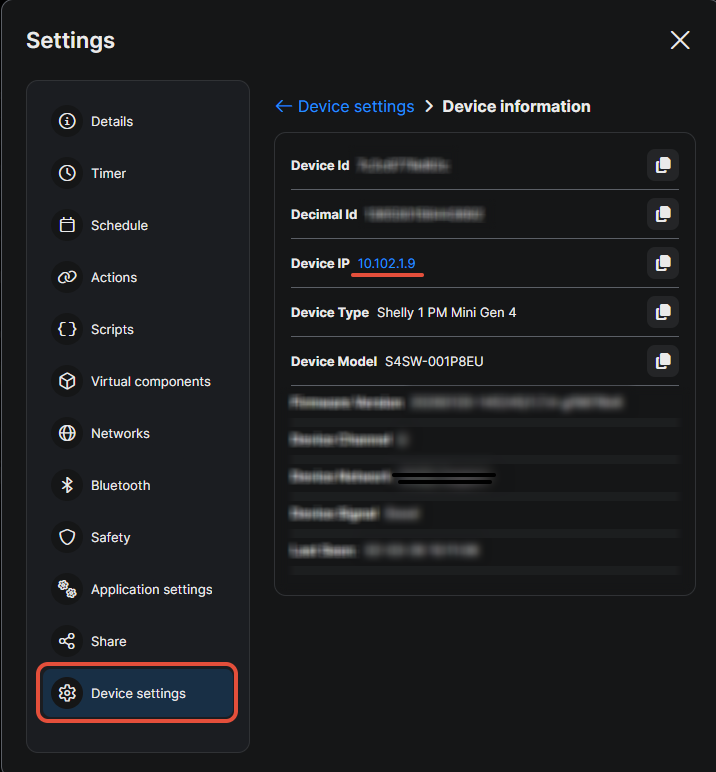
Open the Shelly Smart Control App, go to the device’s Settings > Device settings, and click on the displayed IP address to open the local web interface in your browser.
2. Open the Components Tab
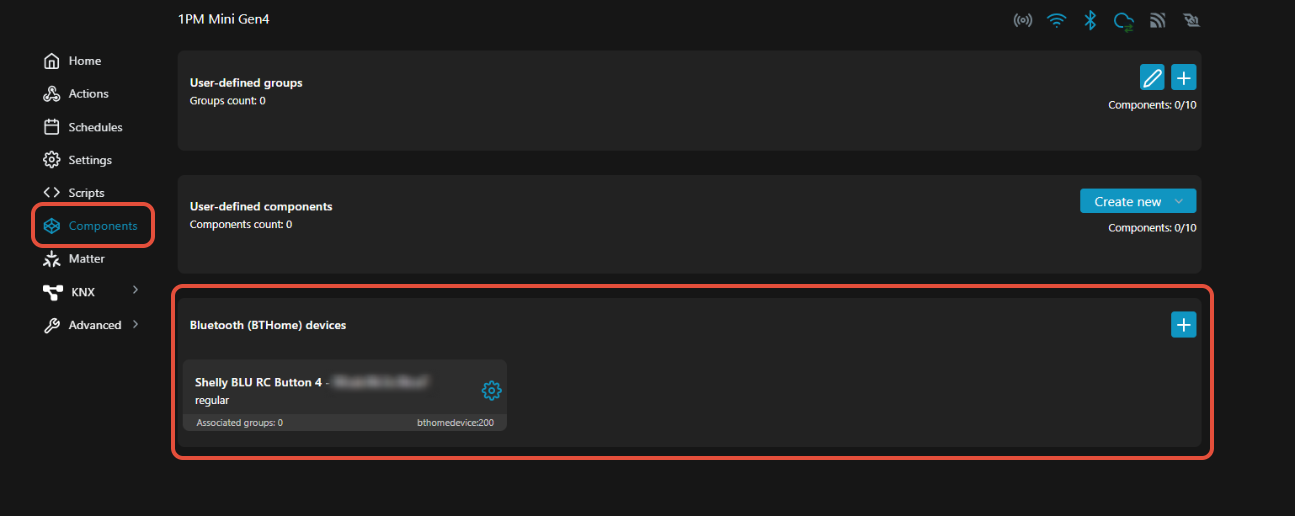
In the local interface, navigate to Components and click the “+” icon next to Bluetooth (BTHome) devices to add a new component.
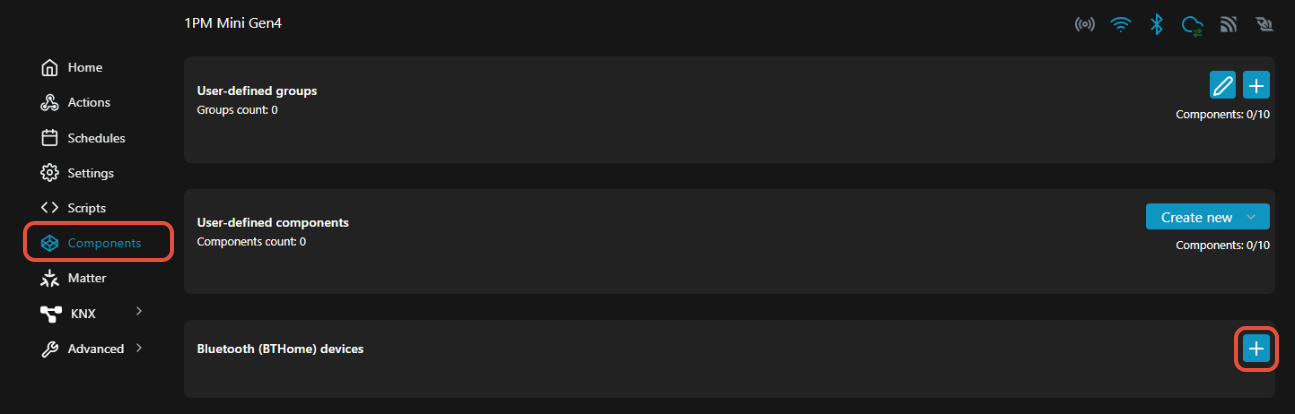
Make sure Bluetooth is enabled on the device. If it is disabled, you will be prompted to enable it.
3. Add the BLU Device by MAC Address (Recommended Method)
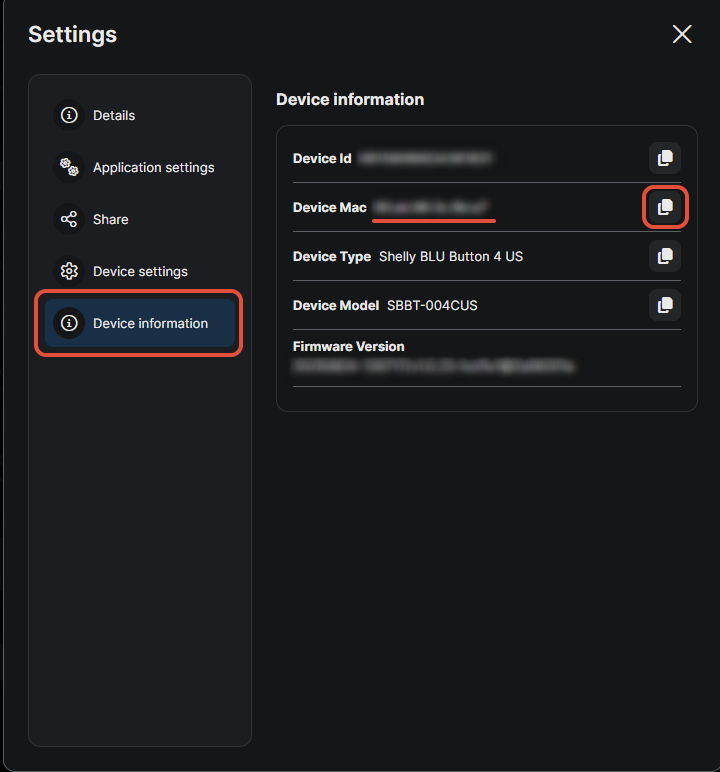
Enter the MAC address of the BLU device you want to pair and select the correct device model from the dropdown list.
Click Add.
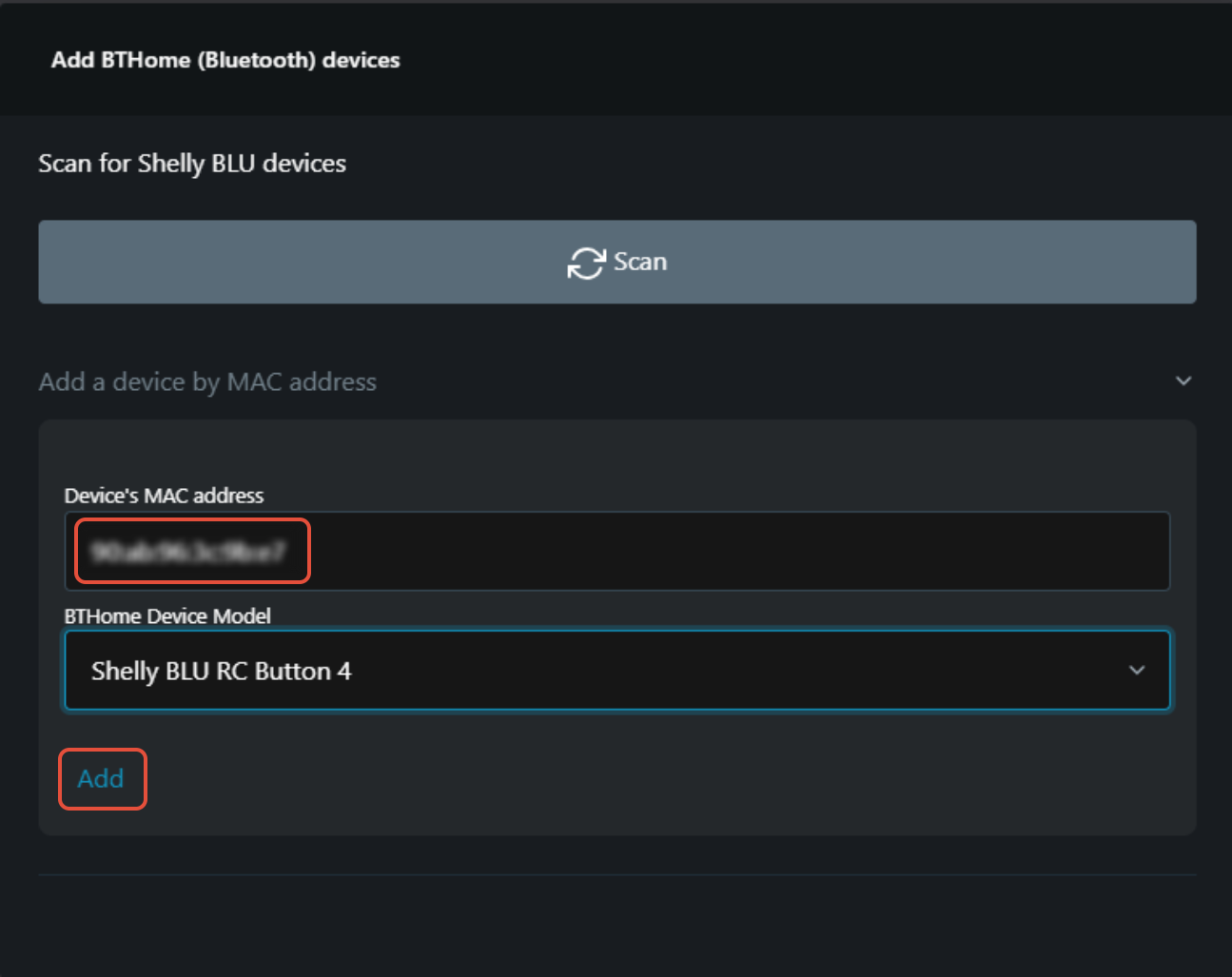
Note: The pairing process may take 30-40 seconds. If the device does not appear after ~30 seconds, refresh the page.
4. Confirm the Component Appears
Once added successfully, the BLU device will appear under Bluetooth (BTHome) devices in the Components section.
5. Create a Local Action
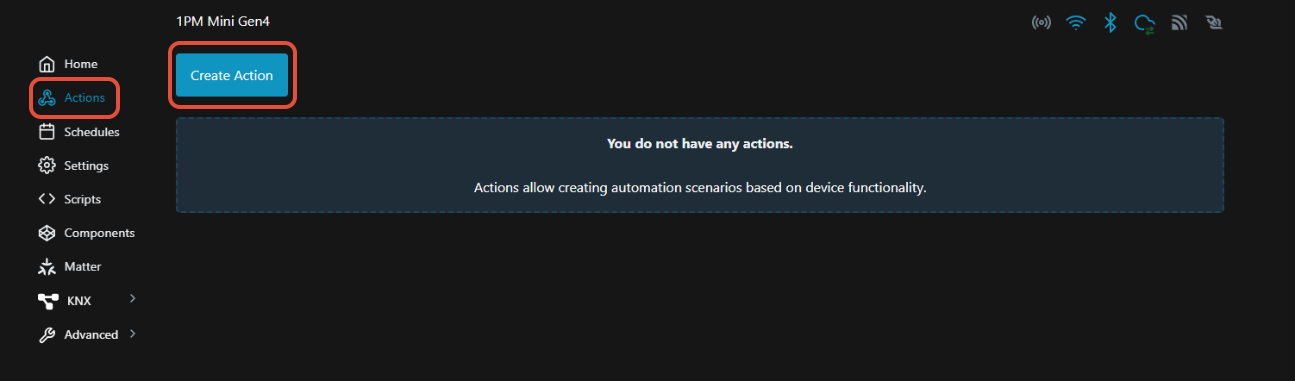
Go to the Actions tab in the local interface and create a new action using the newly added BTHome component as the trigger.
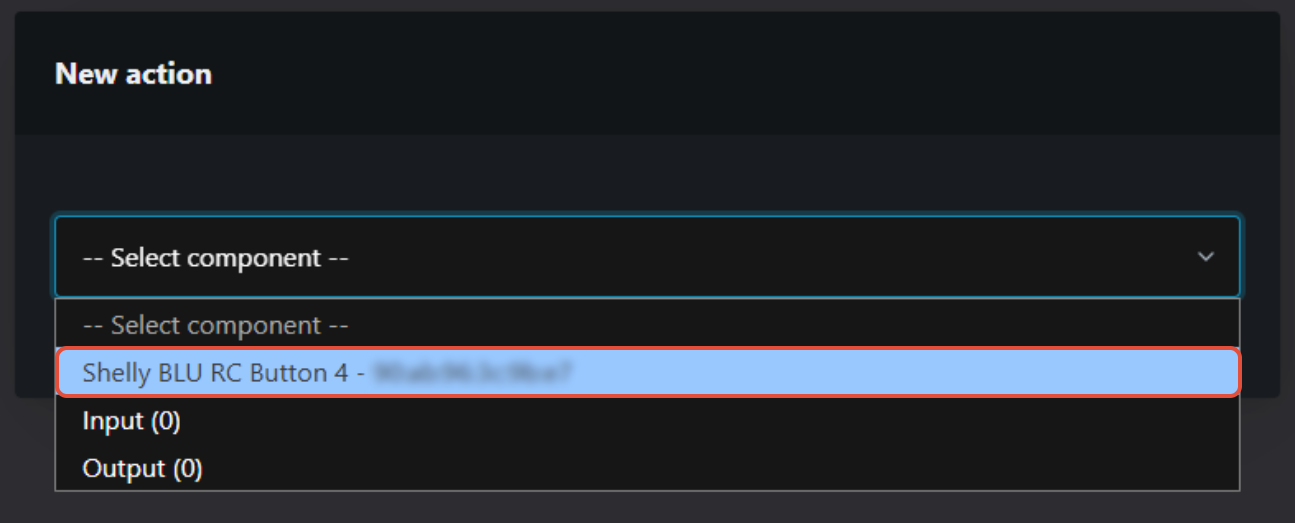
Your automation will now run locally, making it fully independent of the Shelly Cloud and your internet connection.